Before
Hover to compareTap to compare
Image Enhancement
Compare eyes, hair and café detail in this softly focused portrait.

Make it clearer. Remove distractions. Create something new. Each tool keeps its own image and settings.


Improve clarity and detail. Your photo keeps its original size.
Choose PNG, JPG or WebP when you download.
Refine the details, make it bigger, remove a background or describe a new edit. Choose the tool that fits your image.
BeforeCompare eyes, hair and café detail in this softly focused portrait.
 Before
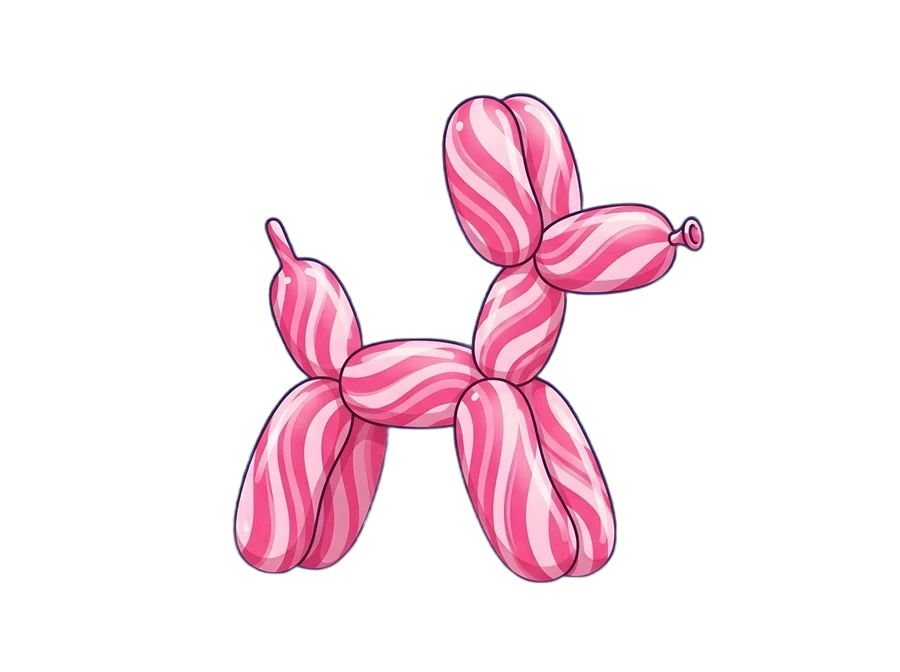
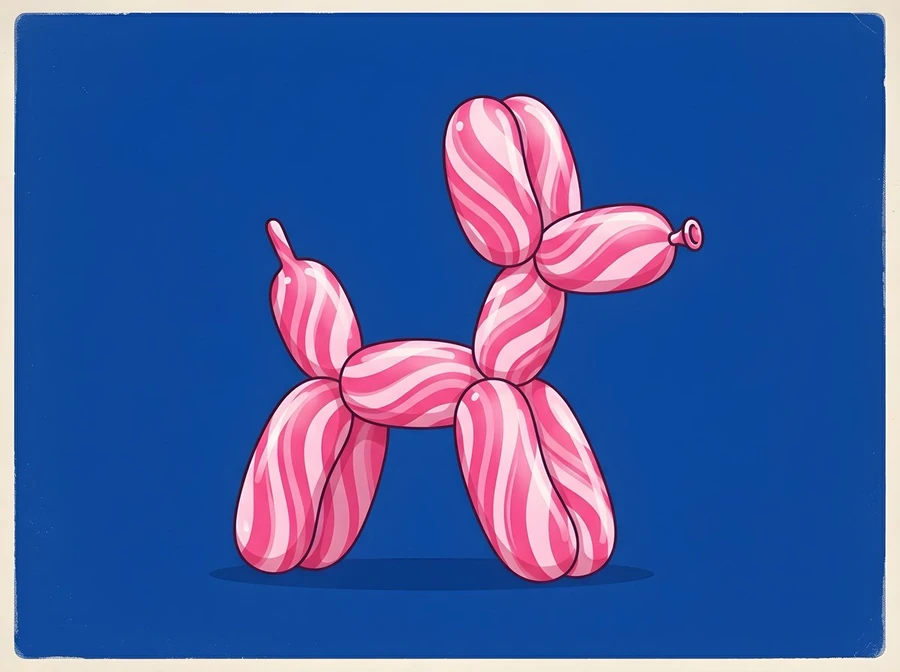
Compare the same illustration detail before and after 4× upscaling.
 Before
Separate a subject from its surroundings and download a transparent PNG.
 Before
Describe a change in color, clothing, lighting or background.
Enhance a photo, clean up distractions or create something new. One account and one credit balance work across every tool.


Improve clarity and detail at the original size.
2 creditsEnhance Image
Increase width and height by 2× or 4×.
2× from 3 · 4× 6Upscale Image
Describe a change to your image with a text prompt.
from 1 creditEdit Image

Brush over an unwanted person, object or distraction.
Basic 3 · Standard 5Remove Object

Keep the subject and download a transparent PNG.
1 creditRemove Background Prompt → image
Turn a written idea into a new image.
1 creditGenerate Image
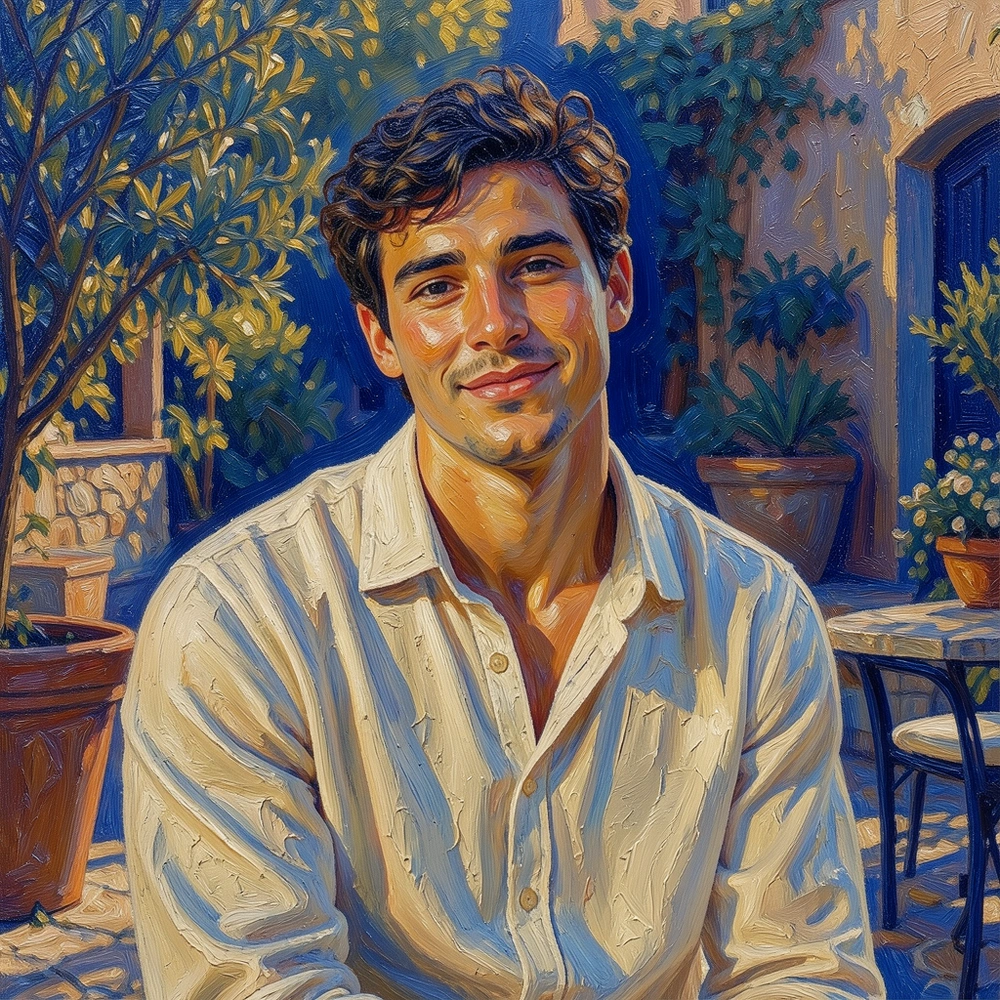
Explore a new style from a reference image.
from 1 creditRestyle Image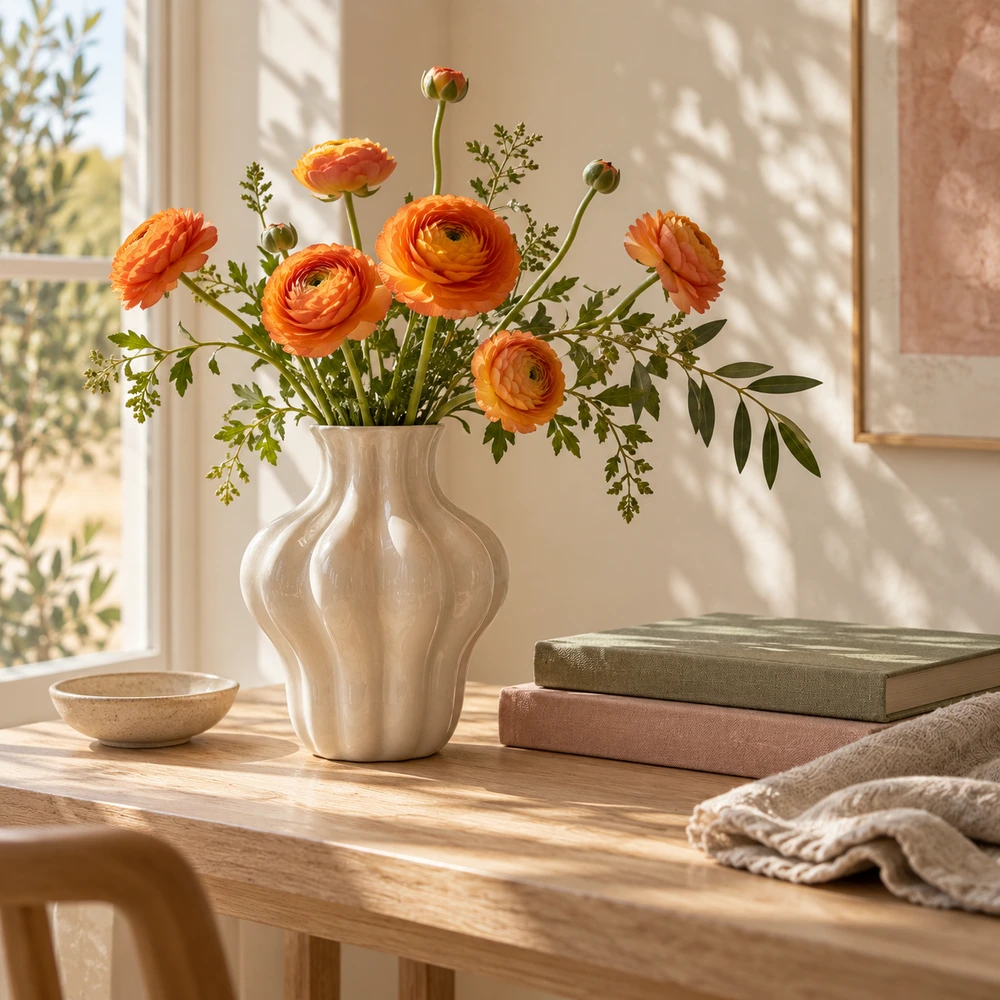 Image → promptThe image shows a wooden table with a white vase on it. The vase is filled with a bunch of orange flowers with green leaves.
Describe an image in words for your next prompt.
1 creditDescribe ImageUpload an image, choose your settings and compare the result before downloading. The price is always shown before you start.
Your originalDrag, drop or pasteDrop an image on the page, click to browse or paste from your clipboard: portraits, products, screenshots or low-quality photos.
One image at a timeJPG, PNG or WebP up to 5 MB. Enhance & Upscale accept up to 4 MP; editing and removal up to 25 MP.
Keep your originalYour file stays untouched, so you can compare it with the result.
Try nowEdit instruction“Change only the coral jacket to cornflower blue. Keep the person, pose and background unchanged.”
Pick a focused toolEnhance quality, upscale, remove distractions or edit with a prompt.
Set options firstPick a scale, quality or describe the edit, and see the exact credit cost on the button.
Follow progressQueued → working → done. You can refresh the page; the same task keeps running.
Explore toolsEdited resultBefore & afterDrag the slider and check faces, text and fine detail up close.
Direct downloadSave as PNG, JPG or WebP. Background removal uses PNG to keep transparency.
Keep goingSend the result straight to Upscale, Remove background or Edit.
Start with your image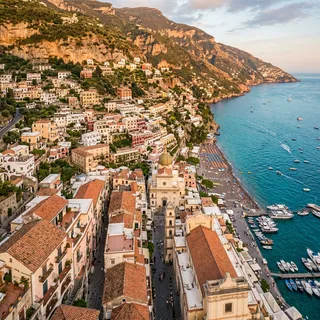
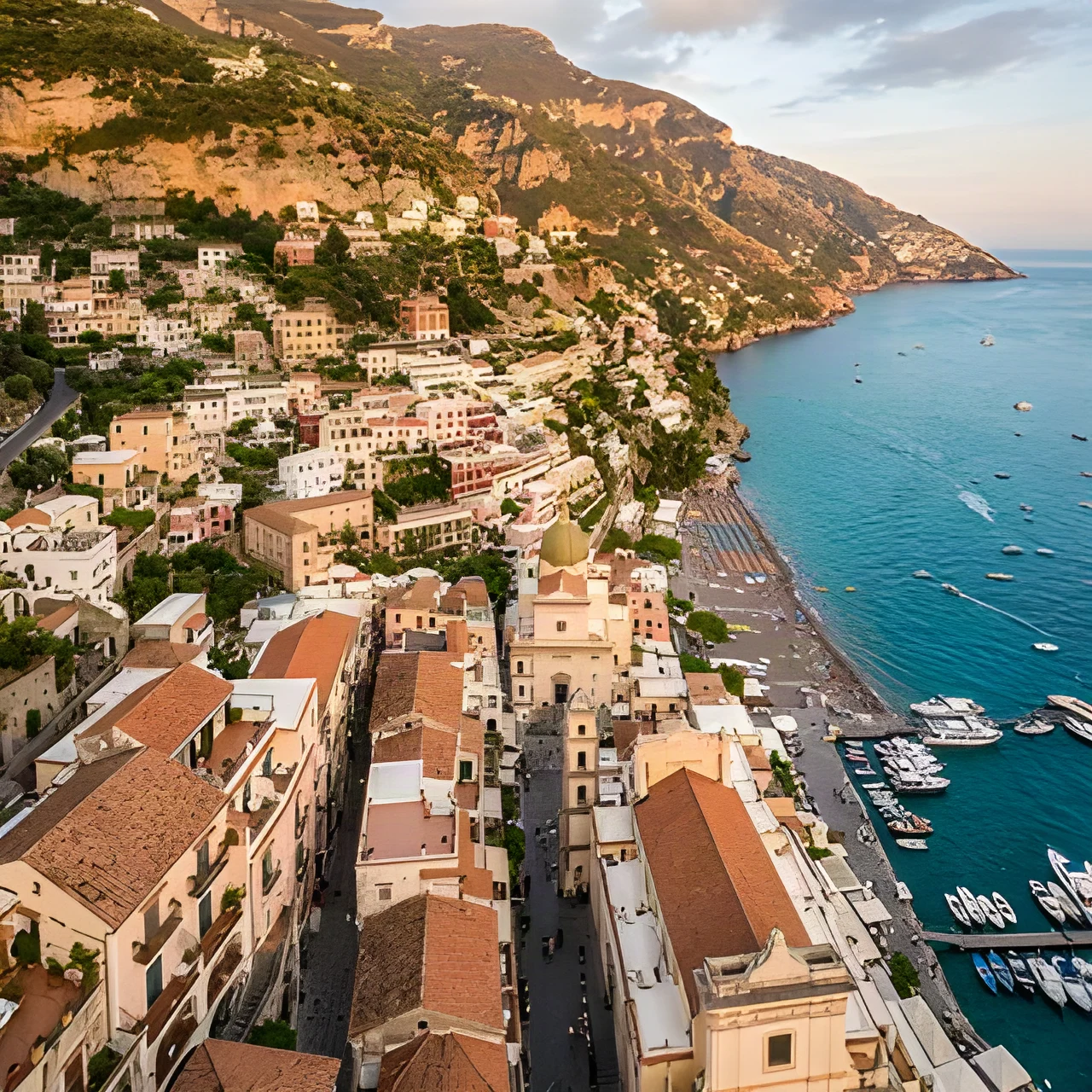
Drag to compare
Choose quality improvements, cleanup or creative changes. Start with an image, or create one from a prompt.
From a portrait to a product shot, explore the tools with these images.
 Before
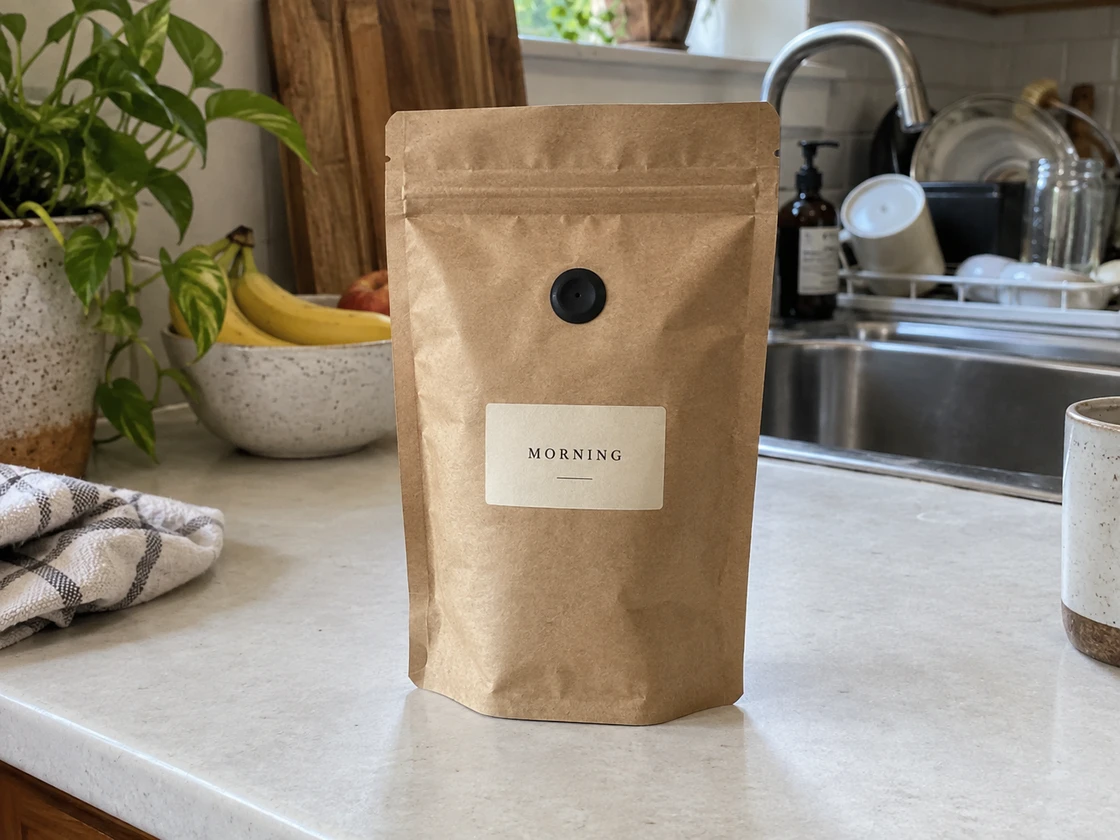
Compare the complete original and edited scene.
AI Image Editor Before
AI results are good, but not perfect. Take ten seconds to check these before you download.
Compare the part you asked to change with your original. Check that the new color, material or lighting matches your intention.
Look at faces, fingers, small text and logos. AI can reinterpret fine details, even when you ask to retain them.
Look around hair and transparent edges. Download a background removal result as PNG to keep its transparency.
Check the output dimensions and inspect important details up close before saving your larger image.
Tools, supported files, credits and downloads.
Enhance or upscale a photo, edit it with a text prompt, remove a background or an object, and create images from text. Image to Image and Image to Prompt are available from the tools menu. Each homepage tool keeps its own image and settings. Use Keep going to send a finished result to another tool.
Sign in to save your creations and use purchased credits across tools.
Sign in to save your creations and use purchased credits across tools.
Use Image Enhancer to improve quality, Image Upscaler to increase resolution, and AI Image Editor for prompt-based changes.
Image Enhancer refines quality at the original dimensions. Image Upscaler increases both width and height by 2× or 4×.
Upload one JPG, PNG or WebP up to 5 MB. Enhancement and upscaling accept up to 4 MP; editing, removal and Image to Prompt accept up to 25 MP. Upscaled outputs are limited to 16 MP. Review the price before you generate and keep your original for comparison.
Image Upscaler supports 2x and 4x. Other changes can be made through AI Image Editor and Image to Image.
Download your result after processing completes. Only upload images you own or have permission to use.